Part of All Access, Wouter's free tools.

Pitpick - macOS app
Cull, caption, rename. Nothing else.
A free Mac app for the hour after the show: get from two full cards to a captioned, well-named selection. No catalog, no import, no waiting for previews.
It never develops the raw. It shows the JPEG the camera already put inside it, the way Photo Mechanic does. Formerly called Snelkeus.
macOS 14 or later · Apple Silicon and Intel · Version 1.5
01
Ingest
Put both cards in: Pitpick lists them, checked. Press Ingest and both cards copy at the same time, each from its own reader, into <job folder>/raw, named from your metadata. Put the same card in again later and only the new photos are copied. You can cull while it copies, or press View to cull right on the cards.
02
Cull
T tags, 1-5 sets stars, 6-9 sets colour labels, also for a whole selection, and ⌘Z undoes. Return opens the loupe; space, Z or a click shows 100%. C puts two to four photos side by side.
03
Caption and rename
Fill in the job once. Every IPTC field can use tokens like {event} and {date}, and P sets who is in a photo. Rename with undo, copy your selection to an archive folder, or deliver the camera's own JPEG with your caption.
Install from Terminal
On macOS, paste this into Terminal and press Return.
curl -fsSL https://github.com/woutervellekooppixel/pitpick/releases/latest/download/Pitpick.zip -o /tmp/Pitpick.zip && ditto -x -k /tmp/Pitpick.zip /Applications && open /Applications/Pitpick.appInstalled this way, macOS does not ask for the Open Anyway step.
Why it's fast
Developing a raw file is the slow part of every photo app, and culling doesn't need it. A Canon CR3 already contains a full-size JPEG made by the camera: 8192 x 5464 pixels on an R5 Mark II. Pitpick reads that JPEG straight out of the file.
It also loads ahead in the direction you browse. On Apple Silicon it decodes with the Mac's hardware JPEG decoder and, at the same time, with libjpeg-turbo on the other cores. In tests at 30 photos a second every frame was sharp when it appeared; at 40 a second, 32 of 33 were. Go even faster and you see the camera's own preview until the sharp image lands, never a blank screen. A grid thumbnail takes about 3 ms.
0-40 ms
to show a photo at screen size
0 ms
for 100% once you have looked at a photo for a moment
0 a second
browsing speed, and every photo is sharp when it appears
0
raw files developed: it shows the camera's own JPEG
Approximate timings on a Mac mini M4 Pro, with real concert files.
What you get
Ingest, cull, caption, rename, copy. Done properly, and nothing more.
Cards found by themselves
Put your cards in and Pitpick lists them, checked, with the number of photos on each. View culls right on the cards, Ingest copies them. Pitpick writes nothing on a card: your tags go along with the ingest.
Incremental ingest
Like Photo Mechanic, Pitpick remembers every photo it ingested. Put the same card in again after the encore, or the next day, and only the new photos are copied, also when the first copies were renamed or moved. That job simply continues.
A second copy, checked
A second copy on another disk while it ingests: the card is read once and written twice. Check every copy against the card reads each copy back from its disk and compares its SHA-256 with the card's, while the next photo comes off the card.
Your best shots first
Protect or rate your best photos in the camera during the show. They are tagged, copied first from all cards, and on your Mac before the rest. Pitpick can eject the cards when everything is in.
Compare a burst
C puts two to four photos side by side. Space or a click zooms all of them to 100% on the same spot, and dragging moves them together. Keys work on the photo with the white frame.
Cull a selection, undo anything
Shift-click, ⌘-click or ⌘A, then tag, rate or label them all at once. ⌘Z undoes. Filter on stars and colour labels, and let every key move on to the next photo, or keep Caps Lock on.
Deliver tonight
Copy your selection as the JPEG your camera made, taken out of the raw: full size, 3000 or 2048 px, with the camera's EXIF, its colour profile and your caption. No Lightroom needed for the first photos.
No catalog
Open a folder or a card and start. Pitpick works on the files where they are. There is nothing to import and nothing to keep in sync.
Two bodies, one timeline
Photos from both cards are merged in capture-time order. The default file name starts with the shoot date and time and ends with the camera's frame number, so the files sort in shooting order too, also within one second. Is one body's clock off? Correct it per body, or pick two photos of the same moment and click Same moment.
The Photo Mechanic tag
T sets the same XMP tag Photo Mechanic uses, so the two apps read each other's tags. Stars and colour labels work Lightroom style.
Open IPTC metadata
Event, location, city, person shown, headline, caption, keywords, creator, credit, copyright, usage terms and more. Any field can use tokens like {event}, {location} or {date}. P sets who is in one photo, and code replacements work as in Photo Mechanic: type \jb\ and the caption says James Bay.
Pinned or per job
Pin the fields that never change, like your name and copyright. Unpinned fields start empty for every new job. Locations remember their city.
Presets
Save the whole setup as a .pitpick file and double-click it on another Mac. Your templates, pins and locations come along. Older presets still load.
Rename with undo
File and folder names come from templates over the same tokens. A rename can be undone, and the XMP files move along.
Default names
Files: {shootdate}_{time}_{event}-{location}-{city}_{photographer}_{frame}, so a frame becomes 2026-11-19_21-04-37_Event-Location-City_Your-Name_3777.cr3. Folders: {date}_{event}-{location}. Spaces become dashes, so Your Name becomes Your-Name. You can turn that off.
Date, time and your name
{shootdate} is the day the photo was taken and {time} the capture time, both from the camera. {date} is the job date: one date for the whole job, editable, meant for folder names. {photographer} is the Photographer field you fill in once and pin. {creator} still works as another name for it.
Copy the selection
Copy your picks to an archive or delivery folder, with new names and the metadata written into the copies.
Safe by design
XMP only: a sidecar next to a raw, inside the file for JPG, DNG and HEIC. It never changes the image data of a raw, never overwrites a file and never deletes anything. A copy only gets its real name when it is complete, and a locked card stays untouched.
Your archive on a NAS
A folder on a network drive gets a small index on your Mac, and nothing is written on the drive. Opening it again only reads what changed: a concert of 2,000 photos reopens in a tenth of a second.
Lightroom friendly
Lightroom Classic reads the stars, colour labels and IPTC fields when you import. It does not read the tag, so T can set a colour label too. Cull, caption and rename first, then import.
Check focus where you click.
Space, Z or a click shows the camera's full-size JPEG at 100%, right at the spot under your mouse. Drag to pan, Esc to go back.
Look at a photo for a moment and 100% is there at once; straight away it takes about 60-80 ms on a Mac mini M4 Pro. Zoomed in, the next photo is already at 100% when you get there, so you can compare focus across a burst. Or press C to see two to four photos side by side, zoomed and panned together.
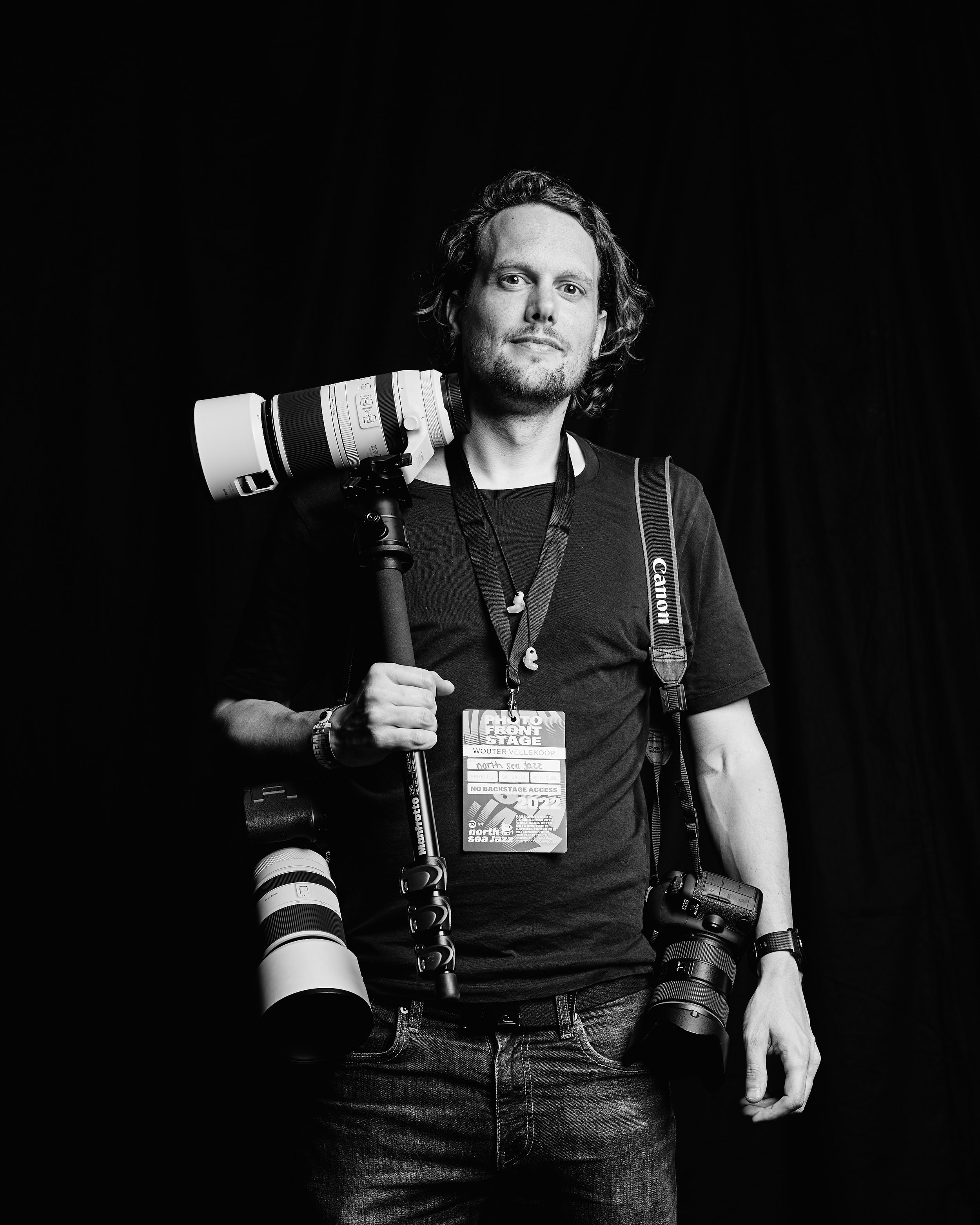
Why I built this
Built for the night of the show.
I am Wouter Vellekoop, a concert photographer. I shoot with two Canon EOS R5 Mark II bodies, so after a show there are two full cards, and the delivery is often due that same night or the next morning.
Before any editing, three things have to happen: pick the keepers, put captions and credits in, and give the files names an editor can find. Photo Mechanic is fast at that because it never renders the raw. Pitpick works the same way, and does only the few things I actually use.
No catalog, no editing, no subscription. It's free and open source, so if you need it to do something else, the code is on GitHub.
Requirements
What you need, and what's inside.
macOS 14 or later
Sonoma or newer, on Apple Silicon or Intel. One download works on both.
Canon CR3 on the fast path
Other raws (CR2, NEF, ARW, RAF, ORF, RW2, DNG and more) and JPG, HEIC and TIFF open through macOS, using the embedded previews where the camera provides them.
Not notarized by Apple
The first time you open it, macOS blocks it. Go to System Settings > Privacy & Security and click Open Anyway. Installed from Terminal, it skips this step.
ExifTool included
Pitpick writes metadata with ExifTool by Phil Harvey, bundled in the app as it is. Thank you, Phil.
MIT license
Use it, change it, share it. The source is on GitHub.
Version 1.5
The download button and the Terminal command always get the latest release. What changed in each version is in the changelog.
Stop waiting for previews.
Ingest, cull, caption, rename. One small app, no catalog, free.
The story behind it: why I built my own culling app. Questions or ideas? hello@wouter.photo